Back to School Kawai Icon Globe
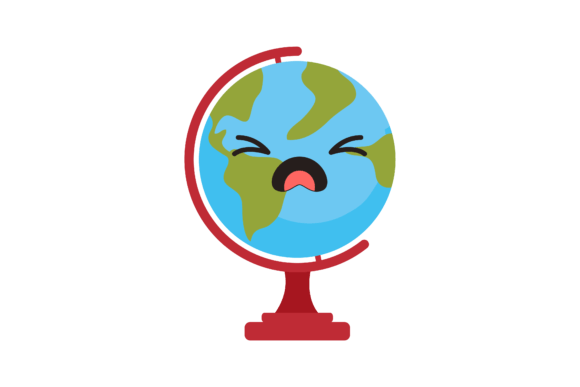
The Back to School Kawai Icon Globe is a purpose-built digital design asset—visually warm, intentionally playful, and structurally versatile. It’s not just an illustration; it’s a functional component designed for integration into real-world creative and operational workflows. Whether you’re launching a seasonal campaign, designing classroom materials, building a brand refresh, or preparing client deliverables, this icon serves as both a thematic anchor and a production-ready resource.
Where This Asset Fits in Your Workflow
Think of the Back to School Kawai Icon Globe as a workflow multiplier—not something you use once and archive, but a reusable element that supports consistency across phases: planning, execution, and delivery. For educators, it can become part of a cohesive visual language for welcome emails, syllabi, or learning management system banners. For marketers, it anchors back-to-school promotions across social media, landing pages, and email headers—ensuring tone and theme remain aligned without redundant design work. Freelancers and small business owners often face tight timelines and shifting client expectations; having a high-fidelity, multi-format globe icon means less time sourcing or redrawing assets and more time refining messaging or strategy.
Practical Use Before a Project Begins
Preparation starts with intentionality—and that includes visual scaffolding. Before drafting copy, storyboarding a campaign, or setting up a course module, preview how the Back to School Kawai Icon Globe fits your canvas. Its 1920px × 1280px dimensions are optimized for standard widescreen displays, making it ideal for digital-first outputs like Canva presentations, Notion dashboards, or Figma wireframes. Drop the PNG or JPG into a mood board to test color harmony with your existing palette. Load the SVG into a web prototype to validate responsiveness. Because the file set includes AI and EPS formats, designers can extract layers, adjust stroke weights, or recolor elements before committing to final layouts—reducing revision cycles later.
How It Functions During Active Work
During active creation, format flexibility becomes mission-critical. The Back to School Kawai Icon Globe delivers six distinct files—each serving a specific role:
- AI (Adobe Illustrator): Edit vector paths, typography, and grouping logic directly—ideal for adapting the globe to match brand guidelines or integrating it into larger illustrations.
- EPS: Maintain compatibility with legacy print workflows or older versions of design software where AI support may be limited.
- SVG: Embed natively in websites, apps, or documentation without loading delays—scalable at any size and accessible via code-level tweaks (e.g., CSS fill changes).
- DXF: Import cleanly into CAD tools, laser cutters, or CNC machines—useful for educators creating tactile learning aids or makers prototyping classroom decor.
- JPG: Quick placement in slide decks, PDF reports, or internal briefs where transparency isn’t needed and universal readability matters.
- PNG: Preserve crisp edges and alpha transparency for overlays, social posts, or layered mockups—especially effective against textured or gradient backgrounds.
This breadth eliminates format-related bottlenecks. You don’t need to convert, re-export, or compromise quality mid-task. If a client requests a version for their WordPress site (SVG), a printed handout (EPS), and a quick Instagram Story (PNG)—you have them all, ready to deploy.
Integration With Common Tools and Platforms
The Back to School Kawai Icon Globe doesn’t exist in isolation—it connects seamlessly with tools professionals use daily:
- In Figma or Adobe XD, import the SVG as a vector layer and use it as a consistent UI element across education-themed templates.
- In Canva, upload the PNG or JPG to your brand kit—then drag-and-drop into social posts, newsletters, or digital signage without resizing guesswork.
- In Notion or ClickUp, embed the SVG in project wikis or onboarding docs to reinforce seasonal themes visually—without bloating page load times.
- For print-on-demand creators or Etsy sellers, the DXF and EPS files support direct import into Cricut Design Space or Silhouette Studio—enabling custom stickers, vinyl decals, or classroom door signs.
No plugin, converter, or third-party service is required. Compatibility is built-in—not bolted on.
Efficiency Gains Beyond Aesthetics
Time saved isn’t just about faster exports—it’s about reducing cognitive load. When you know your assets are organized, labeled clearly, and functionally complete, decision fatigue drops. You’re not debating whether the icon will scale well on mobile, whether it’ll print crisply, or whether it’ll break your CMS. That clarity lets you focus on higher-value tasks: refining learning objectives, optimizing conversion copy, or personalizing student feedback.
Long-term usability also hinges on organization. Store the six files in a dedicated folder labeled “Back to School Kawai Icon Globe – [Year]”, and include a simple README.txt noting recommended use cases per format. This habit pays dividends during annual refreshes—when you revisit the asset next August, you’ll know exactly which file to reach for first.
Quality Control and Consistency Across Outputs
Because all six files originate from the same source artwork, color values, proportions, and stylistic details remain identical across mediums. There’s no risk of mismatched hues between your website SVG and printed brochure EPS—the base design ensures fidelity. That reliability supports brand trust, especially for educators and small businesses where visual coherence signals professionalism and care.
Before deploying, do a quick cross-format check: open the AI file and compare its globe outline to the SVG in a browser inspector. Confirm the PNG renders cleanly at 50% size (for thumbnails) and full size (for hero sections). Spot-check the DXF in your cutting software to verify line weight and closed-path integrity. These micro-checks prevent downstream surprises—like a faint stroke vanishing in print or a stray anchor point causing a cut error.
Real-World Implementation Examples
A homeschooling blogger uses the PNG in weekly newsletter headers and the SVG in their blog’s sidebar widget—both reinforcing the “back-to-school” theme while maintaining fast load times and responsive behavior.
An edtech startup incorporates the AI file into their design system library, using it as a foundational icon for their “Global Learning” feature—then exports customized variants (e.g., country-specific highlights) for regional campaigns.
A freelance graphic designer bundles the EPS and JPG with client deliverables for both digital and print collateral—eliminating follow-up requests for alternate formats and shortening approval rounds.
None of these examples require specialized skills—just awareness of which format solves which problem, and the discipline to match tool to task.
Making It Last
Treat the Back to School Kawai Icon Globe as infrastructure, not decoration. Update your local copies annually—not because the design changes, but because your context does. Rename files to reflect usage (e.g., “globe-icon–email-header.png”) rather than generic labels. Archive older versions separately so you retain historical consistency if needed for audits or retrospectives.
And remember: its value compounds when paired with intention. Use it to signal transition—not just calendar-based (“school is starting”), but mindset-based (“we’re entering a season of growth, curiosity, and shared goals”). That subtle alignment between visual cue and human experience is where practical design becomes meaningful design.